A data export takes a People or Companies search, writes every matching record to a file with the columns you choose, and puts that file in your run history to download. You can run it once or put it on a schedule. Data Export lives in the dashboard at app.crustdata.com/data-exports, under Data Export in the sidebar. There is no API for it. Everything on this page happens in the dashboard.

Who can do what

Data Export follows your team role. Members see the full list and can download anything the team has produced. The New export button is disabled for them, with the tooltip Only team admins can create exports. An export spends team credits on a schedule, which is why creating one is an admin action.

Create an export

New export opens a three-step panel: Query, Columns, then Schedule and preview.

1. Query

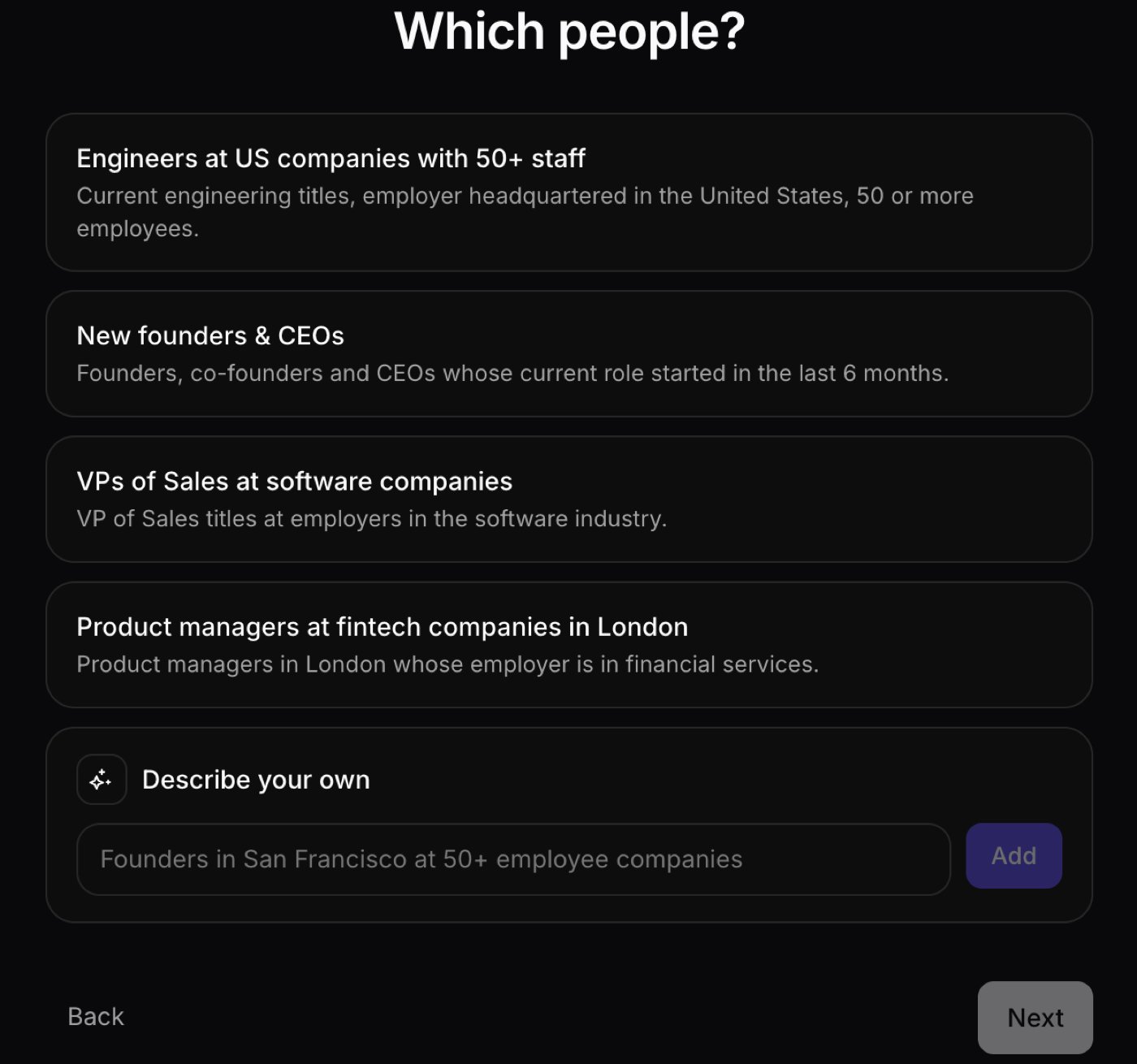
Pick People or Companies, then give it a filter. The entity is fixed once you save, so an export is always one or the other. There are three ways to fill in the filter, and they all produce the same JSON:
  • Write the JSON directly in the editor.
  • Open Start from a template, a dropdown of eight ready-made filters. Picking one replaces the editor contents and names the export after the template.
  • Use Generate with AI, which turns a plain description such as engineering leaders in Bangalore at startups into the filter JSON. The button reads Edit with AI once there is something to change. You can edit whatever it writes before anything runs.
A single Undo step takes back a template pick or an AI result.

2. Columns

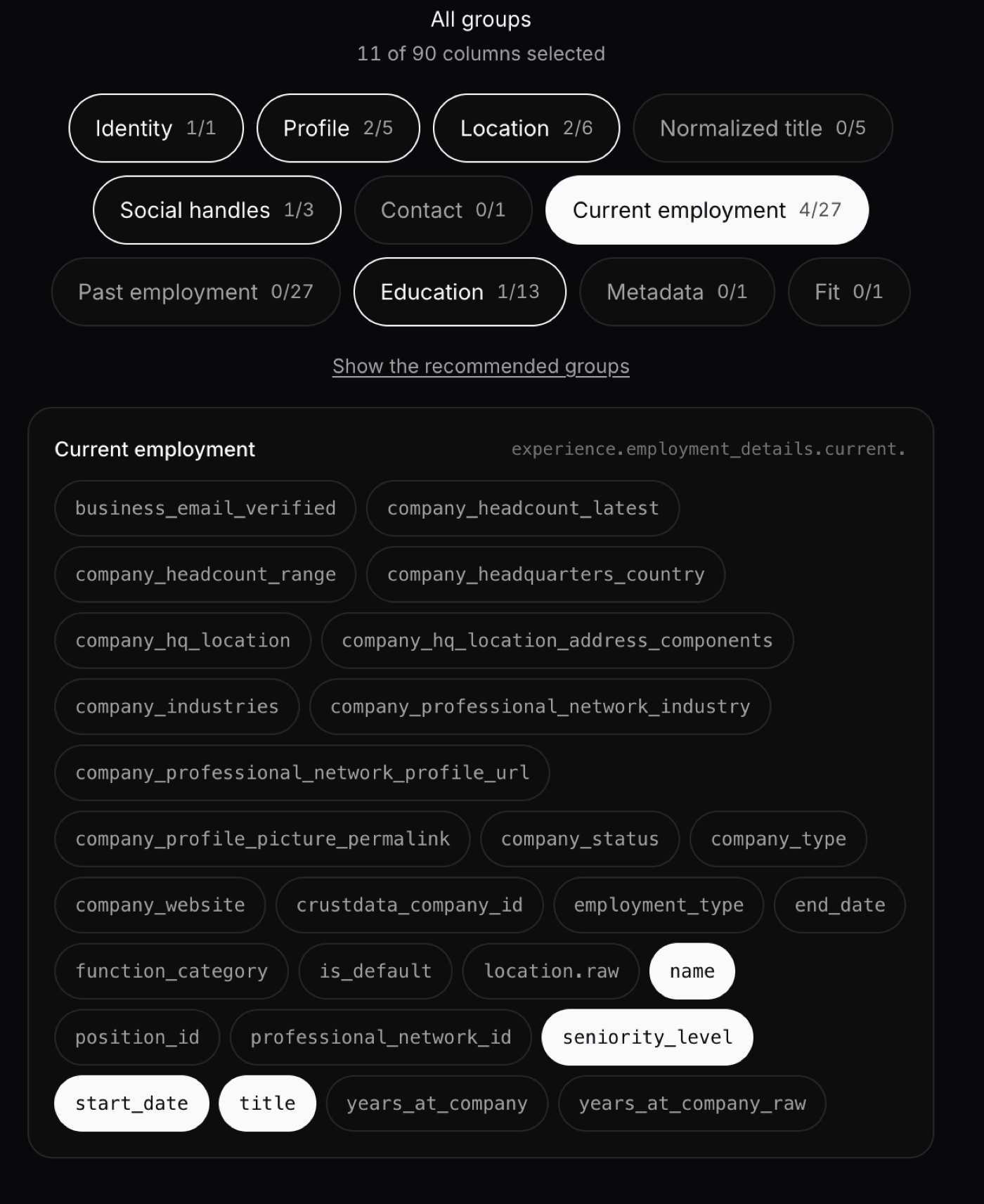
Choose which fields become columns. The picker groups every field your team can access under headings such as Profile, Location, Current employment, Funding, and Headcount. Search the list, or use Defaults for a sensible starting set and Clear to start over. Two rules decide what you get. The order you select is the order in the file, which the footnote under the picker states as Column order is file order. Fields outside your plan are locked, showing a lock icon and a tooltip ending Not on your plan, and you cannot move past this step while one is selected. Column access is checked again when a run starts. If a field is withdrawn from your team between runs, the next run fails rather than quietly writing a narrower file, so you never get a file that is missing a column without being told.

3. Schedule and preview

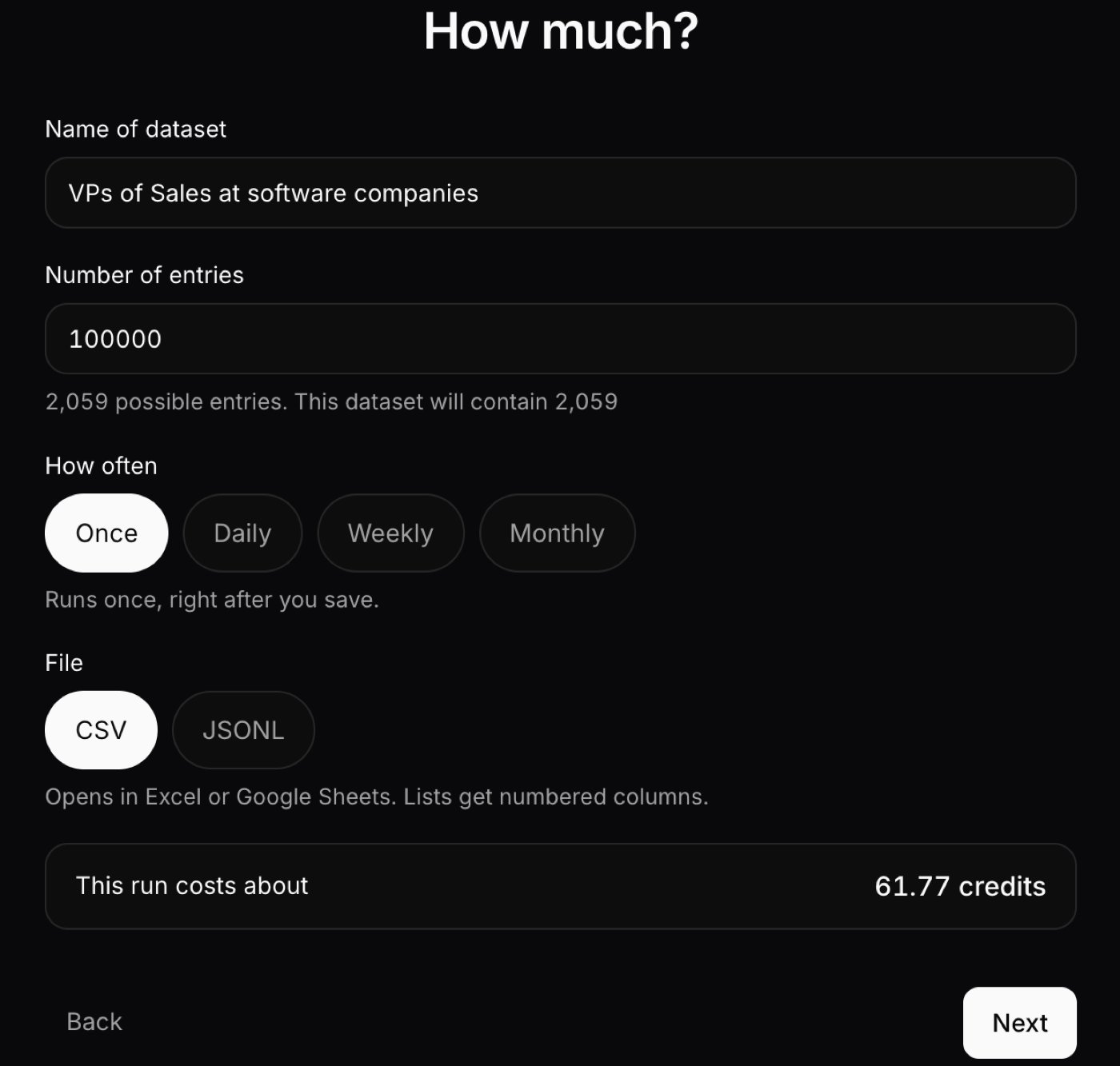
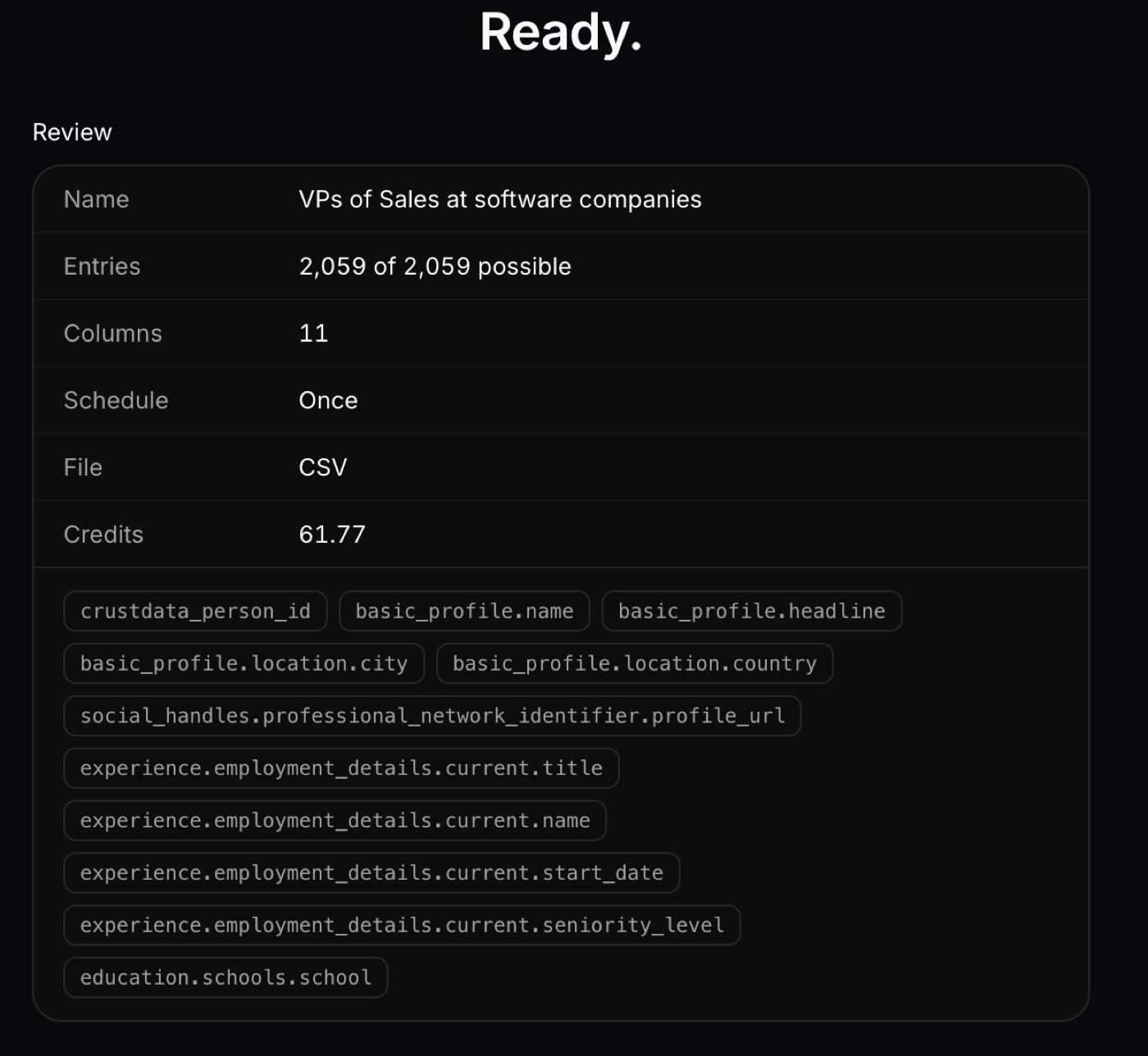
Name the export, set how often it runs, set the row limit, and choose the file format. The panel counts the matches as you go and shows the first ten rows so you can check the shape before you commit. The preview is free. Save with Save and run. The first run starts immediately.

Filters

An export filter is the same filter tree that Person Search and Company Search accept. A condition is {"field": ..., "type": ..., "value": ...}, and you combine conditions with {"op": "and", "conditions": [...]}. Anything you can express as a search filter, you can export.
Two search features are not available in an export. Natural-language ranking through search.query and custom sorts are both rejected, because an export walks the whole result set in a fixed order. That fixed order is what lets a run cover millions of rows without duplicating or skipping any, and a relevance ranking cannot promise that. Use filters to say what you want, and sort the file after you download it. For the fields and operators available, see the Person Search reference and the Company Search reference.

Cadence

Set Runs to one of four options. Whatever you choose, the first run starts when you save. Run now on the export triggers an extra run at any time, including on a paused export. Pause schedule stops future runs and leaves everything else alone. An export does not replay the runs it missed. One that was paused or overdue for a week runs once when it resumes, then picks up its normal cadence. If three scheduled runs fail in a row, the export pauses itself and waits for you. Edits apply to the next run. A run already in progress finishes with the configuration it started with.

File formats

Pick CSV or JSONL. Files download gzipped in both cases. CSV opens in Excel or Google Sheets. Every selected field becomes one column, in the order you selected it. JSONL gives you one JSON object per line, nested the same way the search API returns a record, so a loader written against the API works on the file unchanged.

How CSV handles lists

Some fields hold a list rather than a single value: a person’s past jobs, a company’s investors. CSV has no way to nest, so it spreads each list field across numbered columns named path[i].leaf. If you select experience.employment_details.past.title, the file carries experience.employment_details.past[0].title, experience.employment_details.past[1].title, and so on. The run uses as many slots as its widest row needs and never truncates, so a run where the busiest person has six past jobs gives every row six slots, most of them empty. The list fields are education.schools and current and past employment for people, and basic_info.all_domains, basic_info.markets, funding.investors, locations.all_office_addresses, revenue.public_markets.stock_symbols, and the taxonomy lists for companies. Choose JSONL if you would rather keep the nesting than flatten it.

Row limits

Set People per run or Companies per run to cap how many rows a run writes. A new export starts at 100,000. Your team ceiling is 1,000,000 unless Crustdata has set a lower one, and the field tells you which applies: Up to 1,000,000 per run on your team. Go above the ceiling and the field turns red: Your team's limit is 1,000,000 per run. Need more? Contact us. If you need a larger extract than the ceiling allows, talk to Crustdata about a managed export. A search that matches more rows than your limit still runs. It writes rows up to the limit and marks the run capped, so you get a file rather than an error. Two other limits apply: one run at a time per export, and two at a time per team. A run that cannot start for either reason is skipped and recorded in the history, not queued.

Runs

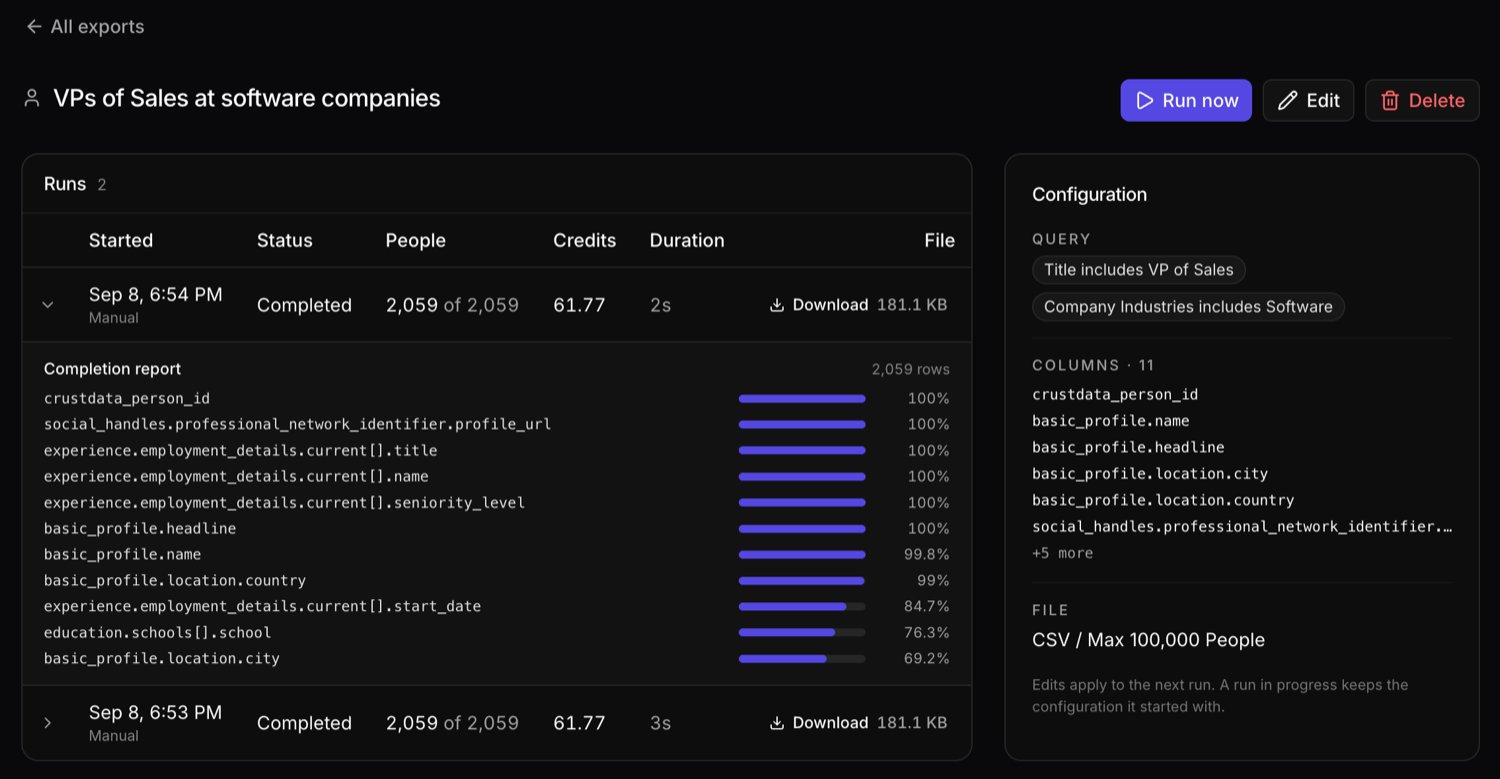
Every run lands in the export’s history with its start time, whether it was Manual or Scheduled, how many rows it wrote out of how many matched, the credits it used, how long it took, and a download link. Open a run to see its completion report, which shows how many rows carried a value in each column. That is the quickest way to spot a column that came back mostly empty. When a run fails, What happened above the report explains why. Files are kept, so you can download a run again later. Each download link is minted when you click and lasts one hour. Anyone holding that link during the hour can download the file, so treat the link the way you would treat the file.
Examples

Every filter below is one of the eight templates the dashboard ships. The match counts come from running each filter against the live search API on 7 September 2026, and they move as the data changes.
Current engineering titles, at an employer headquartered in the United States with 50 or more people. [.] matches a substring, so this catches every title containing Engineer.
Filter
Matched 5,022,460 people. Well past a 1,000,000 row ceiling, so a run against this filter writes a million rows and marks itself capped. Narrow it with a seniority or location condition if you want the whole set in one file.
People whose current founder or chief executive role started in the last six months. Use in to match any of several exact titles, and a date condition to bound the start.
Filter
Matched 70,372 people. On a weekly cadence this is a standing list of people who have just taken the top job, refreshed for you.
Three conditions stack with and: the title, the employer’s industry, and where the person is.
Filter
Matched 2,654 people. Small enough to run once and hand straight to someone.
A company filter. Bound a range by putting two conditions on the same field, => for the floor and =< for the ceiling.
Filter
Matched 31,099 companies.
Category plus a funding date. Put this on a monthly cadence and each file is the current picture rather than a one-off snapshot.
Filter
Matched 3,289 companies.

Pricing

A run bills for the rows it writes, at the same per-row rate your plan charges for Person Search and Company Search. Exporting a row costs what searching for it costs. See Pricing for your plan’s search rate, and Credits to check your balance. Premium filters and columns add their own per-row charge on top of the base rate, on the same terms as they do elsewhere. Failed and skipped runs cost nothing, and a run that stops part-way bills only for the rows it actually wrote. The preview is free, so counting matches and looking at the first ten rows never costs credits. Check the count before you save. Because a run bills per row, the row limit is also your spend control. A new export starts at 100,000 rather than the ceiling for that reason. If your balance will not cover the first run, the panel warns you and still lets you save. The run is skipped until you top up, and the export carries on from there.

When a run does not finish

A run that cannot finish records why, and you see one of these against it. Running out of credits mid-run does not throw the work away. The run stops at its next checkpoint, keeps the rows already written, and bills only those. It shows as Partial.

Managed exports

If Crustdata provisions bulk dumps for your team, they appear under Managed exports on the same page, below your own. They show the dataset, frequency, last delivery, next delivery, and status, and each has its own run history. Managed exports are read only here. To change a schedule or a destination, contact your account manager or request a new export. If your team has none, the section does not appear.

Terms

Creating an export means accepting the Terms of Service and the Data Export Terms. In short: the data is for your own internal use, you may not resell or redistribute it, and you handle personal data under the privacy laws that apply to you. Read the Data Export Terms for what governs the files themselves, including retention and how Crustdata handles removal requests.

What to do next

Build the filter

Every field and operator an export filter accepts, on the Person Search reference.

Company filters

The same for companies: fields, operators, and worked filter examples.

Check your rate

What your plan charges per search result, which is what a row costs.

Track changes instead

If you want only what is new since last time, a discovery watcher fits better than a repeated export.